
TV not found on the network: nine checks in order
When your phone and TV seem to be on the same Wi-Fi but the remote app still says nothing found, one of these is usually the reason. Go in order. Each takes under a minute.
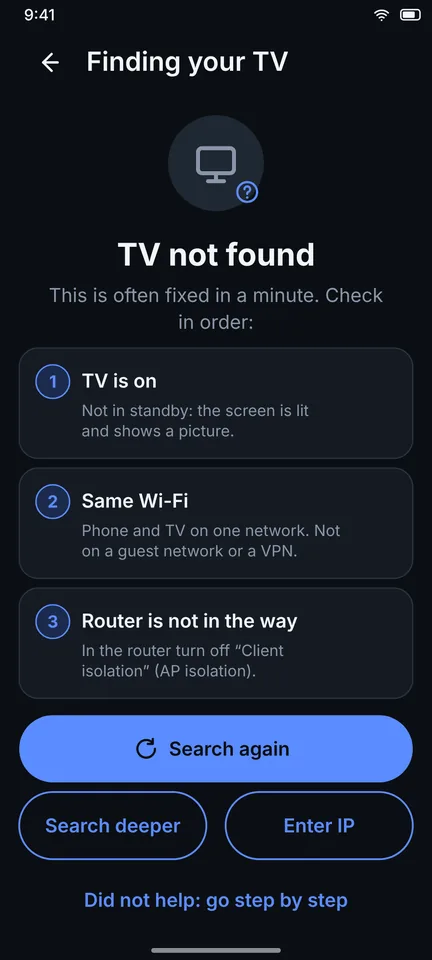
- Wake the TV fully. Standby and sleep modes often turn the network off. The screen should be lit with a picture.
- Compare the Wi-Fi names. On the phone open Wi-Fi settings, on the TV open the network status. They must match, including 2.4 GHz versus 5 GHz names if your router uses different names. Different bands on the same router normally still work, but different networks do not.
- Leave guest networks. Guest Wi-Fi and hotel Wi-Fi usually isolate devices from each other, so the phone cannot see the TV.
- Look for client isolation (AP isolation) in the router settings and turn it off. Mesh systems and range extenders sometimes create a second network, so put both devices on the main one.
- Turn off VPN and private DNS on the phone while you search. A VPN can send local traffic into the tunnel instead of to the TV.
- Keep the phone on Wi-Fi. If the Wi-Fi has no internet, Android may jump to mobile data and local traffic goes the wrong way. When Android asks, choose Stay connected, or turn off automatic switching to mobile data.
- Allow the permission. On new Android versions, Zorvo needs the nearby devices or local network permission: Settings > Apps > Zorvo > Permissions.
- Restart. Power the TV off at the wall for 30 seconds. Restart the router if other devices also have trouble.
- Add the TV by IP address. In Zorvo choose Enter IP. The address is in the TV's network settings, often under Network status. Reserving a fixed IP for the TV in your router makes this more reliable.
Still nothing? Look at your brand
Many TVs need one setting switched on before they accept a phone. The brand pages list it for each maker:
- Roku TV
- Samsung TV
- LG TV
- Sony Bravia TV
- Google TV
- TCL TV
- Hisense TV
- Xiaomi TV
- Philips TV
- Panasonic TV
- Vizio TV
- Fire TV
Why a TV might never show up
- The TV uses a system Zorvo does not support yet. The compatibility check in the app says so plainly.
- The router blocks multicast discovery. Adding the TV by IP can bypass this.
- Android is blocking local network access for the app. If permission is denied, devices may not be found even by IP address.
Frequently asked questions
Why does my remote app find the TV sometimes and not other times?
TVs often change their IP address, and some go deaf to the network when asleep. Zorvo looks for the TV by identity and not just by address, but a sleeping TV still needs to be woken.
Does a 5 GHz phone work with a 2.4 GHz TV?
Usually yes if both are on the same router, because the router joins the bands. Some routers or extenders split them into separate networks, which breaks discovery.
Related guides
- Lost your TV remote? Use your phone
- Control a TV without Wi-Fi: the honest answer
- TV Remote Guides by TV Brand
Last reviewed: 2026-11-14
Zorvo is an independent app. It is not affiliated with, endorsed by or sponsored by Samsung, LG, Roku, Sony, Google, Amazon, Philips, TCL, Hisense, Xiaomi, Vizio, Panasonic or any other TV maker. All product names, logos and trademarks belong to their owners and are used only to describe compatibility. Compatibility depends on the TV model, its software version and your network. Run the in-app compatibility check to see what your TV supports.